MEDIENWERK.EU - the creative works for visual experiences and events

PlayOut plays videos and graphics full screen on a projector, LED wall or second monitor at the push of a key – with a start point on the time bar, start and stop with the space bar and remaining, elapsed and end time on the main screen. The full version PlayOut Pro adds markers, remote control via Stream Deck and phone, PDF, audio, YouTube and web pages, clickers and stage timers.
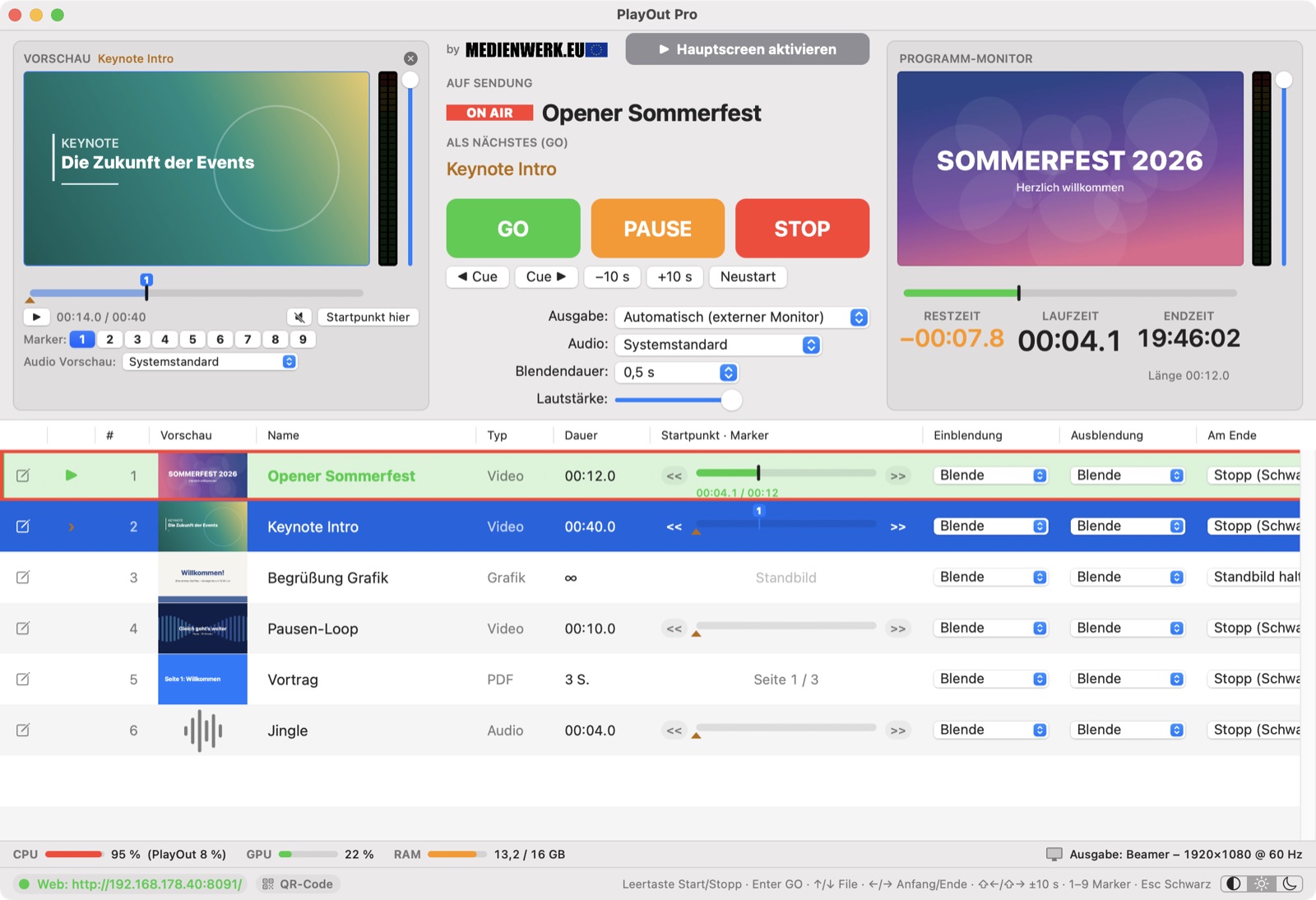
All functions at a glance: drag & drop, YouTube link, GO on the LED wall, PDF presentation, markers, own windows, cue buttons for touchscreens, phone via QR code – with music, no voice-over.
Drag videos, graphics, audio, whole folders or links into the table or paste them with ⌘V, reorder them with the mouse. Select several rows with ⌘- or ⇧-click and remove them together – as usual. Note/separator rows via right-click and a colour marking per cue keep things clear.
External monitor, projector or LED wall is detected automatically – borderless, without menu bar and mouse pointer. PlayOut starts on the main screen only; the “Hauptscreen aktivieren” button switches the output on – switching it off asks for confirmation first.
Preview monitor on the left (full version), controls in the middle, program monitor on the right – both the same size in their own frames, with level meter and volume slider. The cue on air blinks with a red frame in the playlist.
Large and easy to read; remaining time turns orange at 15 s and red at 5 s. End time as clock time.
Drag to the position you want on the time bar – nothing plays yet. The space bar starts from there. Under the program monitor a click into the bar jumps straight to that point in the running file.
Press a number to set a marker, press it again to jump there. In every row: << back to the beginning, >> to the next marker.
Choose from a drop-down: hard cut, fade, zoom or slide – separately for appearing and disappearing, audio fades along.
Per cue – hold the last frame, continue with the next cue automatically or loop seamlessly from the start point. New: select several cues with ⌘-click and combine them into a playlist via right-click – it plays them one after another, optionally looped and shuffled (full version).
Files that cannot be played are marked red at once – with the reason. Convert to MP4 with a right-click (using ffmpeg).
Vertical stereo level meter with a slim volume slider next to program and preview, separate audio output for each. Plus CPU, GPU and RAM load and resolution and refresh rate of the output monitor.
Web interface with QR code, Stream Deck plugin and HTTP commands for Bitfocus Companion.
The next cue is already loaded in the background and set to its start point – on GO the picture is there at once, YouTube too. Mac and Windows (10 / 11) with the same functions – and PlayOut reports new versions itself and updates on request.
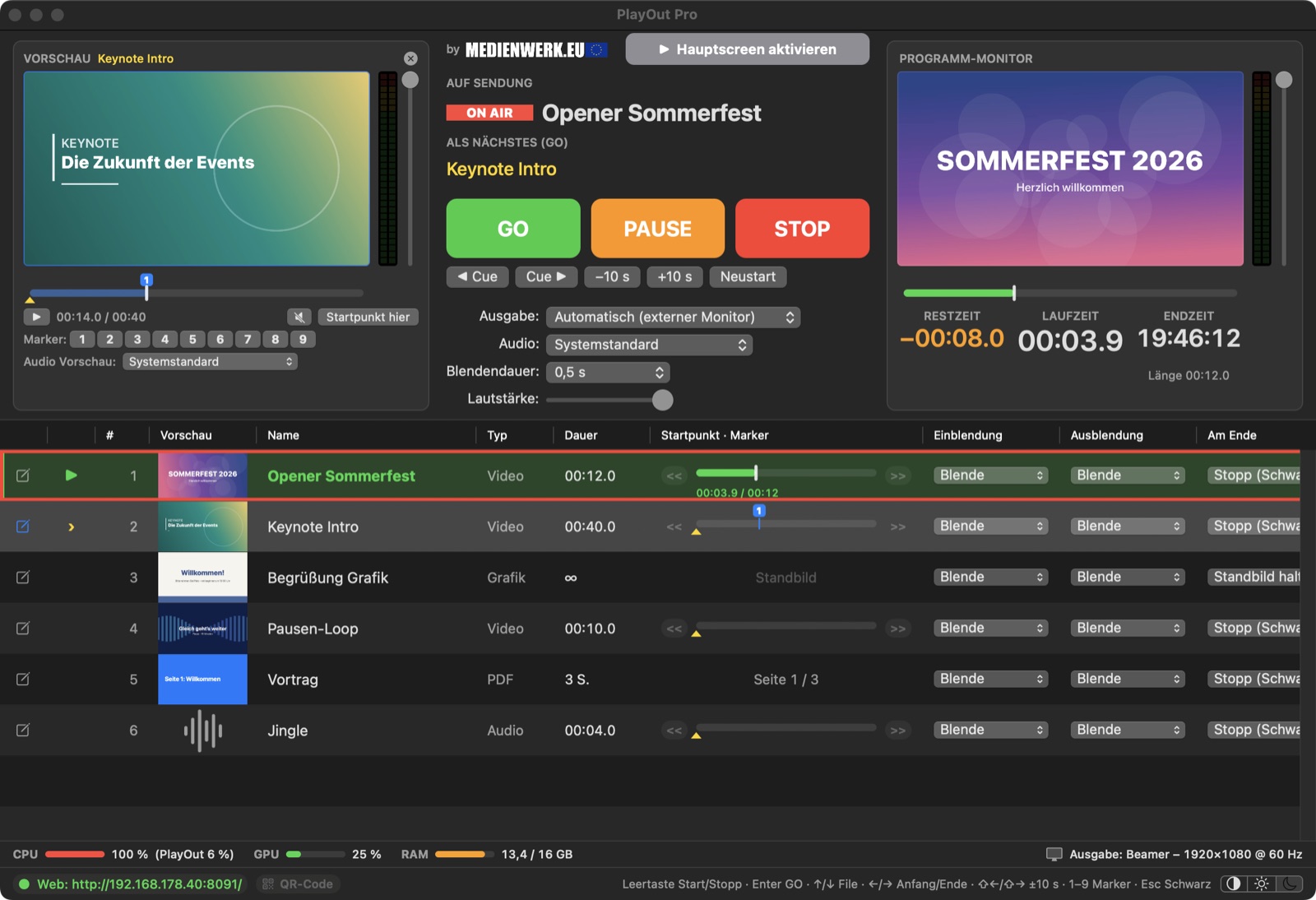
One click at the bottom right or ⇧⌘L switches between light, dark and system setting. Nothing glares in a dark control room, and everything stays readable in daylight.
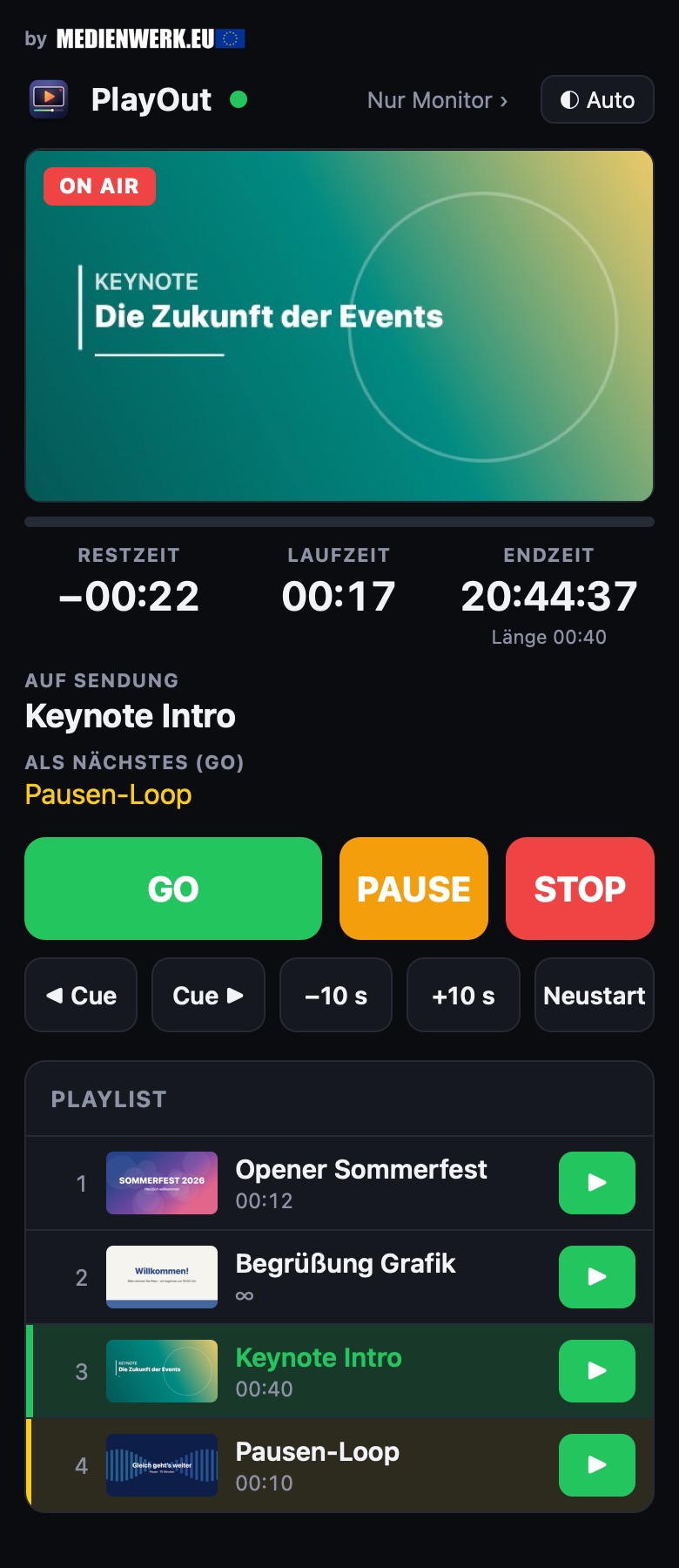
PlayOut comes with its own web server. Scan the QR code – and phones, tablets or another computer on the network show the live picture of the output, the three times and the playlist with thumbnails. In the full version, GO, start/stop, pause and every single cue can be controlled from there, too.
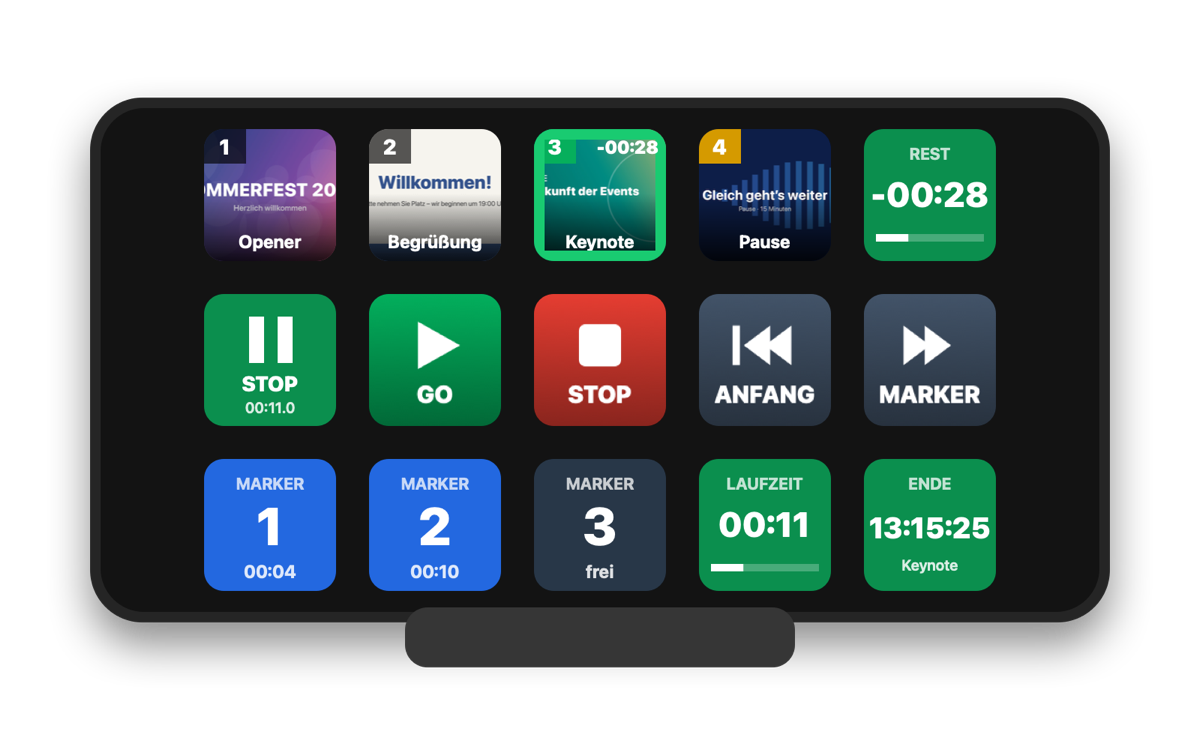
In the full version, the included plugin for the Elgato Stream Deck adds keys for start/stop, GO, pause, fade to black, << beginning, >> marker and selection. Marker keys show whether the marker is set and where. “Play cue” keys show the thumbnail and light up green while the cue plays. Time keys count remaining, elapsed or end time live.
The STD version plays videos and graphics – free and without time limit. The full version PlayOut Pro unlocks everything else – with a personal code for all your computers.
Press a number to set a marker, press it again to jump there – plus >> to the next marker in every row. Set markers and the start point calmly in the preview monitor while the output keeps running. Preview and program can also be opened as separate, freely movable windows – e.g. on a second control monitor. “DIRECT TO PRG” hands the preview cue to the program at exactly that point, waiting – the space bar starts it.
Stream Deck with plugin, Bitfocus Companion via HTTP and the control buttons of the web interface on phone and tablet. Plus the “Cue-Buttons” window: every file as a big button with a remaining-time bar, rows and columns freely adjustable (e.g. 5 × 6) – tap and the file plays. Ideal for touchscreens. Via their own QR code the cue buttons are also available alone in the browser – ideal for a tablet.
PDFs page by page in full screen, razor-sharp even on 4K projectors. PowerPoint presentations run in PowerPoint itself on the output monitor – with animations, transitions and videos; PlayOut turns the slides by clicker, key or cue button and plays the next cue after the last slide (PowerPoint must be installed). Right-click to add links as cues: YouTube videos full screen without the page around them – with start point, markers, seeking and fades like your own videos –, or any web page.
microCUE, DSAN Perfect Cue and other presenters: turn pages, GO, black, start/stop. Keys can be learned – even while PlayOut runs in the background, if you like. Per cue “Start: Klick/Space”: the cue waits ready at its start point and only starts on space, click or clicker – ⏮ at the program monitor jumps back to the beginning and waits.
MP3, WAV, AIFF and M4A as cues of their own – with time bar, start point, markers and fades. New: audio mode – preview and program monitor at half height, showing the waveform instead of the picture. The preview has its own level meter and its own audio output, e.g. for headphones. New: second layer – just drag a cue onto another one and it starts along: music under a picture, logo or lower third over a video, with its own loop and end action. Level and volume per cue right in the playlist. Optional Auto-Level evens out the loudness of all videos and audio – with limiter, adjustable target.
Finds Ontime and Stagetimer with one click on “Timer im Netzwerk suchen” (a saved timer reconnects by itself at launch) and shows countdown, time bar and messages in a freely placeable overlay – even above the projector picture.
Register right in the app (menu Pro ▸ “PlayOut Pro freischalten …”) – with PayPal. Master license for companies and organisers on request.
| Space | cue running: pause · again = continue at the same point – otherwise start the selected cue |
| Enter | GO – play the cue, selection moves on |
| 1 – 9 | Set a marker (if free) or jump to it – full version |
| ⇧ + number · ⌥ + number | Set marker again · delete it |
| << · >> | Start point to the beginning · to the next marker (buttons in every row) |
| ↓ / ↑ | play next / previous file in the playlist (PDF: page forward / back) |
| ← / → | previous / next cue on air, waits for the space bar – full version |
| ⇧← / ⇧→ | 10 seconds back / forward |
| ⇧⌘H | Hauptscreen (output) on / off |
| ⌥⌘1 · ⌥⌘2 · ⌥⌘3 | Preview · program as a separate window · cue buttons (full version) |
| Home | back to the beginning and wait, space starts (full version) |
| Windows | Ctrl instead of ⌘, Alt instead of ⌥, Del instead of ⌫ |
| ⌘V | Paste a copied link (YouTube, web page) or files into the playlist |
| Esc | Fade to black |
| P · R | Pause · restart cue |
| ⌫ | Remove cue |
/api/toggle | Start / stop from the start point (like the space bar) |
/api/go | GO – play, selection moves on |
/api/stop | Fade to black |
/api/marker/2 | Set or jump to marker 2 (…/set, …/delete) |
/api/tostart · /api/nextmarker | << beginning · >> next marker |
/api/playnext · /api/playprev | play next / previous cue |
/api/play/3 | play cue no. 3 now |
/api/pause | Pause / resume |
/api/rewindwait | back to the beginning and wait (⏮) |
/api/volume/80 | volume in % |
/api/status | status as JSON (remaining, elapsed, markers …) |
On the first start macOS reports that the app could not be checked: System Settings ▸ Privacy & Security ▸ “Open Anyway” (macOS 14: right-click ▸ “Open”). Then allow access to the local network – the web interface and Stream Deck need it.
Windows: on the first start SmartScreen may warn (“Windows protected your PC”) – “More info” ▸ “Run anyway”. Then allow access on private networks (web interface, Stream Deck).
The STD version is free and without time limit. If PlayOut helps you, I would be happy about a small donation via PayPal – or unlock the full version PlayOut Pro.
Wishes, adaptations or support for your event? Gladly on request.
