medienwerk.eu - the creative works for visual experiences and events

During the PowerPoint slide show a freely placeable window shows the time from Ontime or Stagetimer.io – with time bar and stage messages. Without a stage timer it measures the presentation time from the first click.
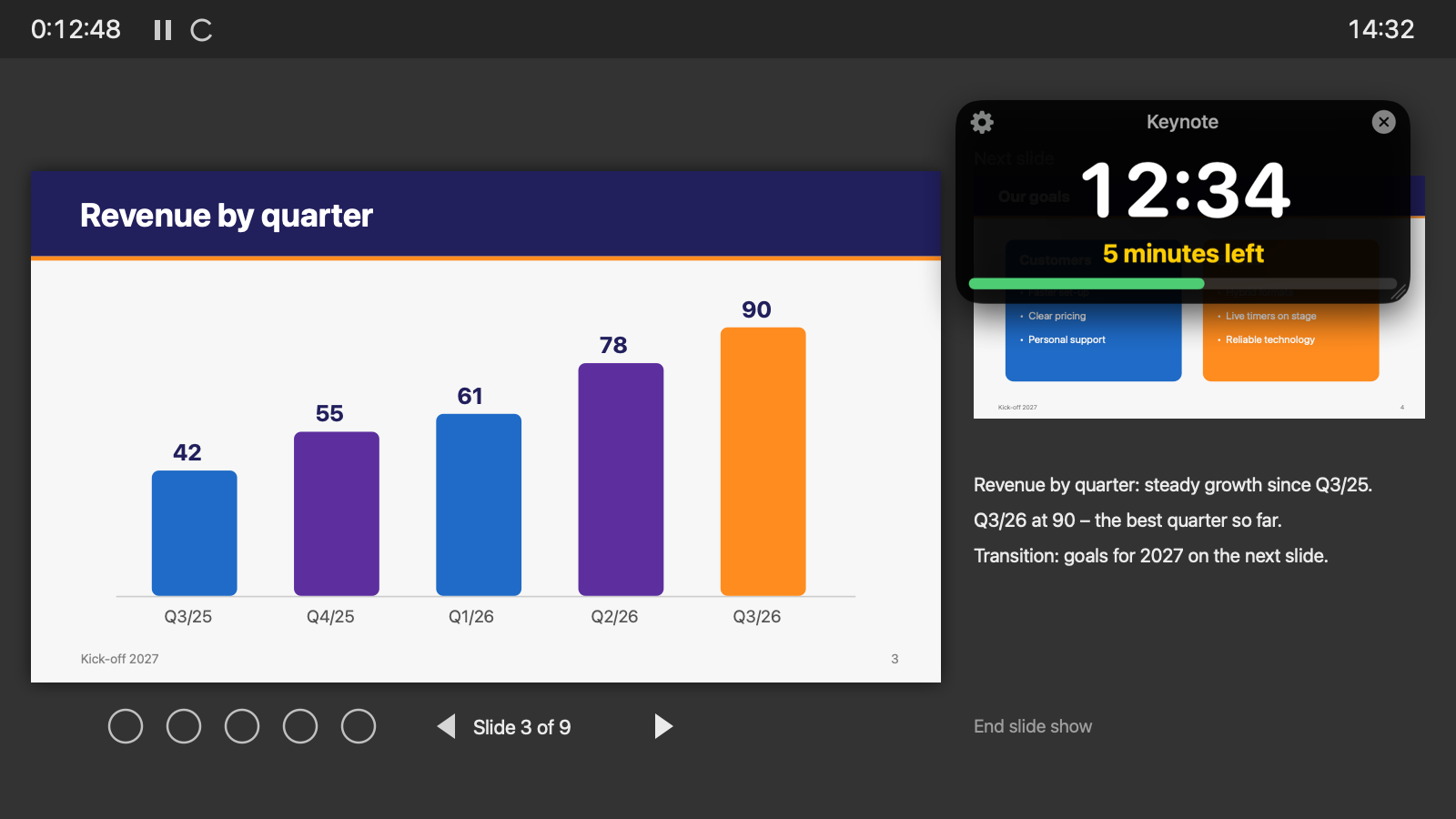
The timer window lies above the full-screen presenter view. It appears automatically with the slide show and disappears afterwards.
Drag it anywhere, resize it at every edge. The gear (top left) opens the settings, the X (top right) closes it.
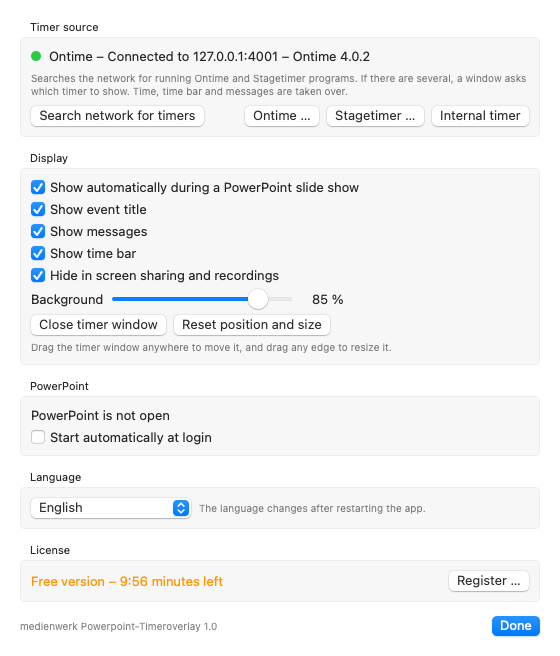
Searches the network for Ontime and Stagetimer. If there are several, a window asks which timer to show. Connect Stagetimer in the cloud with room ID and API key.
The bar fills up while the event runs – green, orange and red according to Ontime's warning times.
Messages from Ontime and Stagetimer appear in yellow below the time, blinking too, plus the secondary message.
Without a stage timer the internal timer counts the presentation time – it begins with the first click in the slide show.
The window never takes the focus from PowerPoint. Your clicker and the arrow keys keep changing the slides.
The timer window is not transmitted in screen sharing (Teams, Zoom) and recordings – can be switched off.
On Windows a PowerPoint add-in with its own ribbon tab, on the Mac a companion app in the menu bar. In English, German and French.
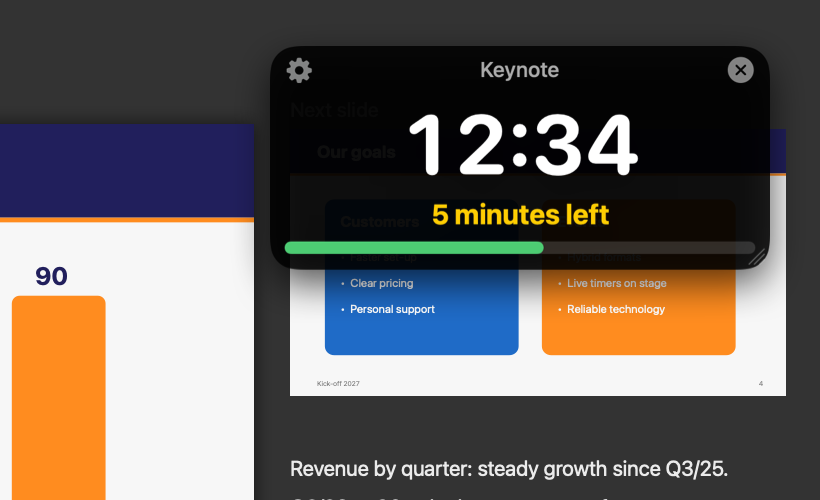
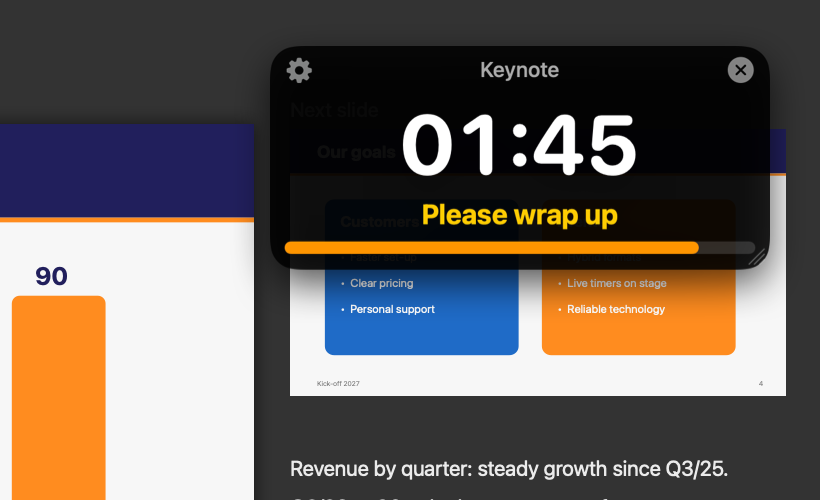
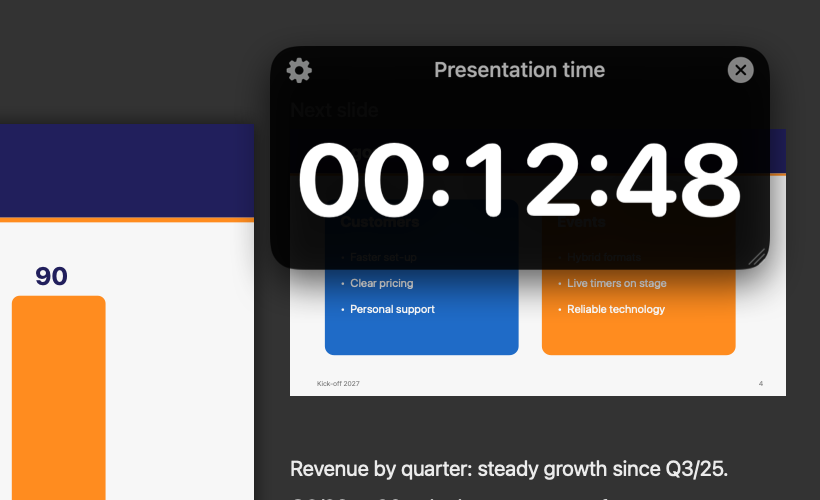
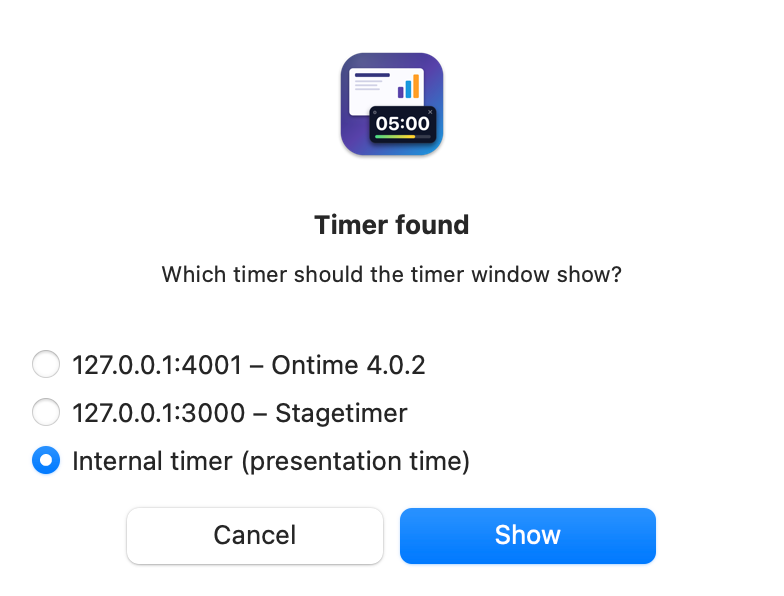
The timer finds Stagetimer.io or Ontime in the network automatically and asks which timer to use – the internal timer can be chosen too. Ontime and Stagetimer are only read, never controlled.
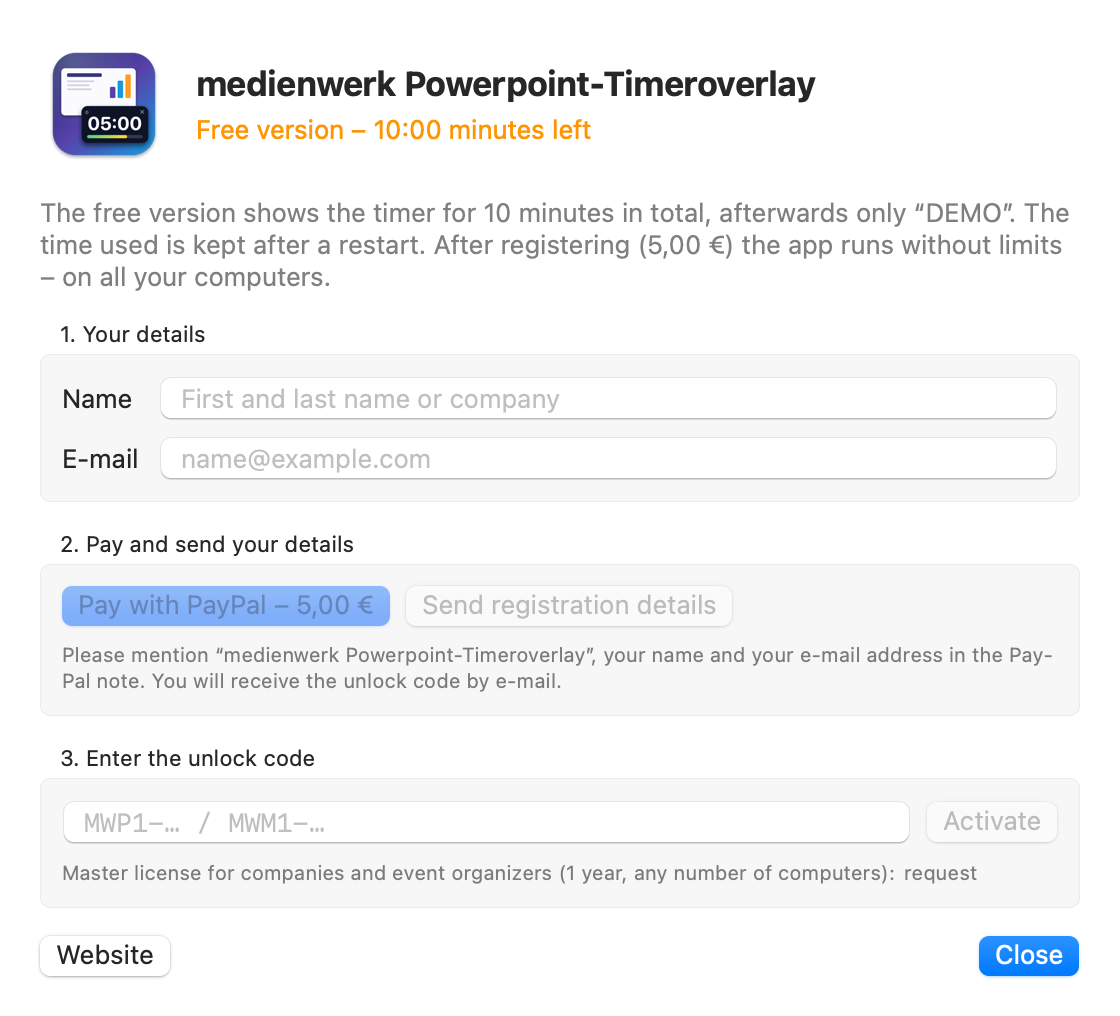
The free version has all features and shows the timer for 10 minutes in total – after that it says “DEMO”. After registering the timer runs without limits.
Install it and try it for free.
In the timer window click the gear › “Register …”, enter name and e-mail, “Pay with PayPal”.
“Send registration details” opens an e-mail with your name and e-mail address.
Paste the unlock code from our e-mail – done.
For you on all your computers – desktop, laptop, event computers. Activated with name, e-mail and code, no time limit.
For companies, rental firms and event organizers: one code for any number of computers, without name or e-mail – valid for one year.
The unlock code works together with your name and e-mail address – please enter both in the app exactly the same way.
Mac: on the first start right-click → “Open”. Windows: if SmartScreen appears, click “More info” → “Run anyway”. Close PowerPoint before installing.
On Windows yes: a COM add-in with its own tab “Timeroverlay” in the ribbon. PowerPoint for Mac does not allow plug-ins to draw above the presenter view – there it is a small menu bar app that watches PowerPoint and starts with your Mac.
No. The window lies on your screen above the presenter view; the projector only shows the slides. It is invisible in screen sharing as well.
Ontime (getontime.no) and Stagetimer (stagetimer.io) are stage timers for events. The Timeroverlay shows their countdown, time bar and messages but never controls them.
With the first click in the slide show – when you go to the next slide, on Windows also at the first animation step.
You activate the personal license (5,00 €) on all your own computers with name, e-mail and code. For companies and event organizers with many computers a one-year master license is available on request.
The timer window shows “DEMO” and the registration window opens. PowerPoint keeps working normally.
 medienwerk Powerpoint-Timeroverlay